
Season Outlines and Bibles
Arc Studio covers the whole flow from season outline, to episode outline, to episode treatment, to episode script.
The best part is that everything stays connected and consistent: As you flesh out your episode outline, it will reflect the additions in the season outline. And as you tweak your character backstory in the season bible, these changes will trickle down to the notes that you have available while writing your script.
Follow this guide to get a quick overview over the whole process:
Step 1: Start a new project with a season outline & bible
Section titled “Step 1: Start a new project with a season outline & bible”The season outline & bible is a central repository for all notes on:
- Season arcs / storylines
- Recurring characters
- Locations
- The season’s key beats, organized per episode
How to get started with an episodic project:
- Go to the Desk, then: Projects >
+ Create>Project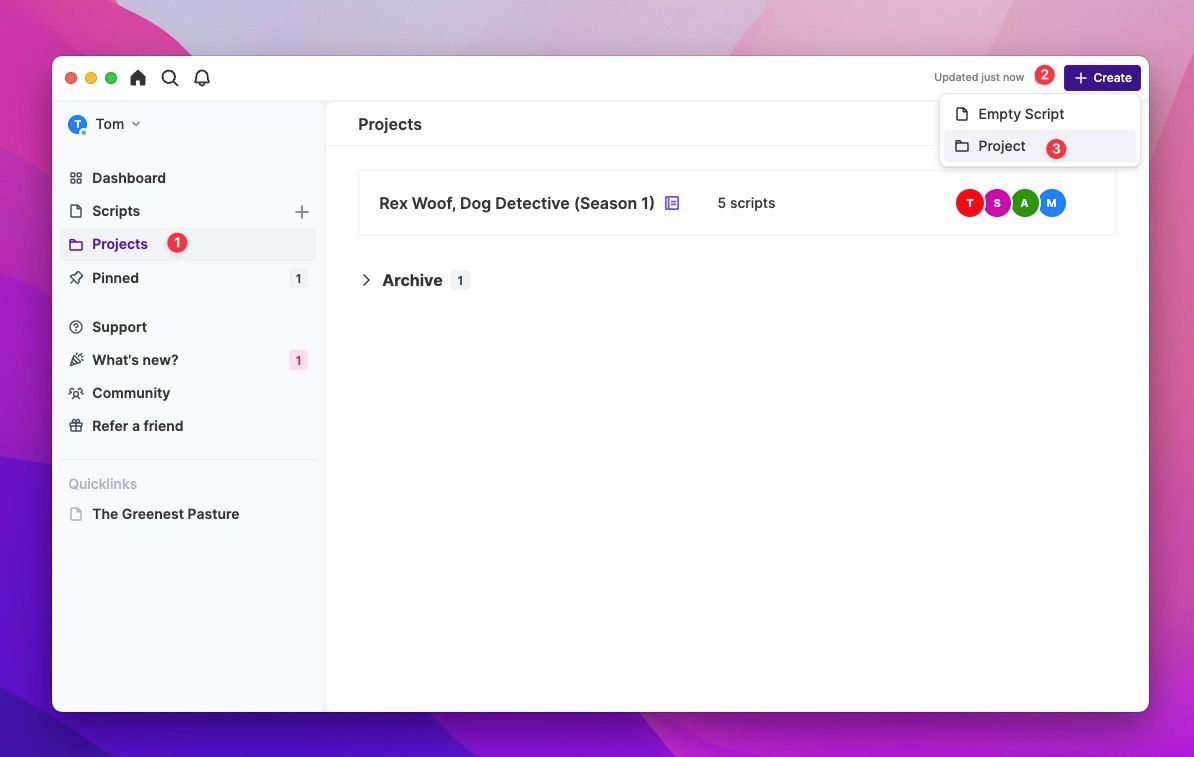
- Give your project a name and be sure to select
TV Series with outline. Then clickCreate project.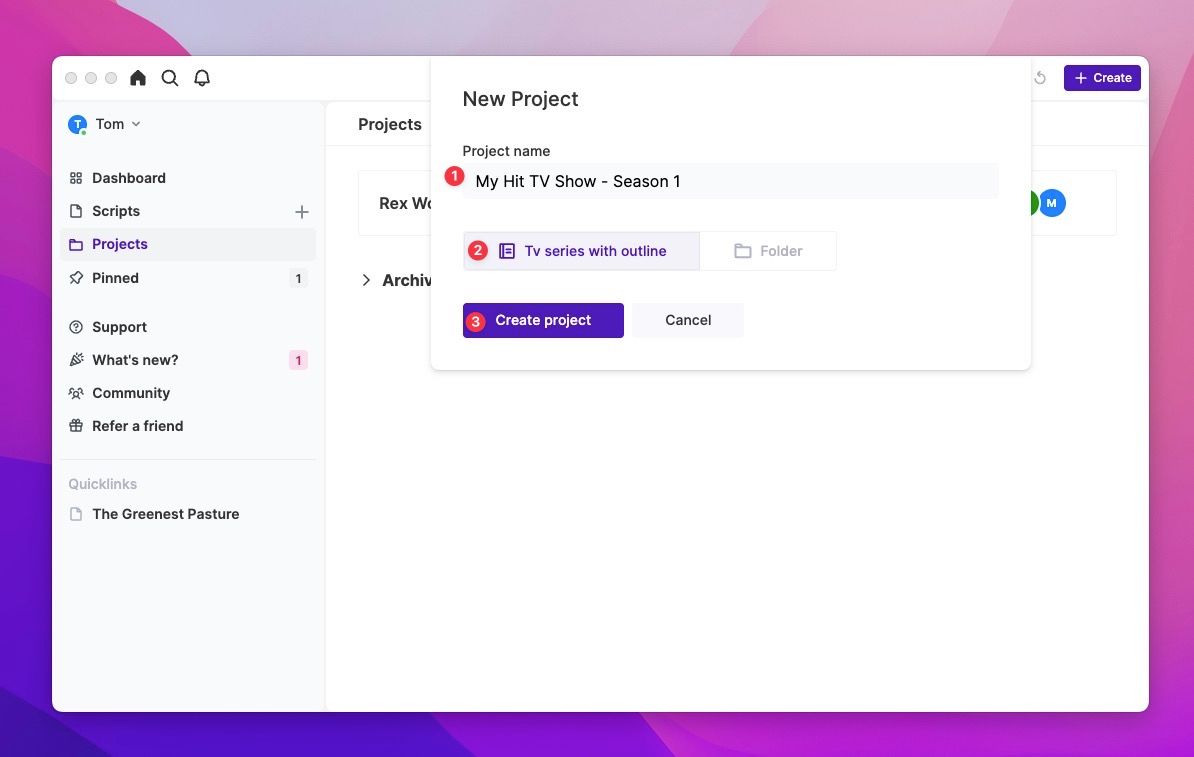
- Click on the pre-created
Season outline & bibleto start working on your season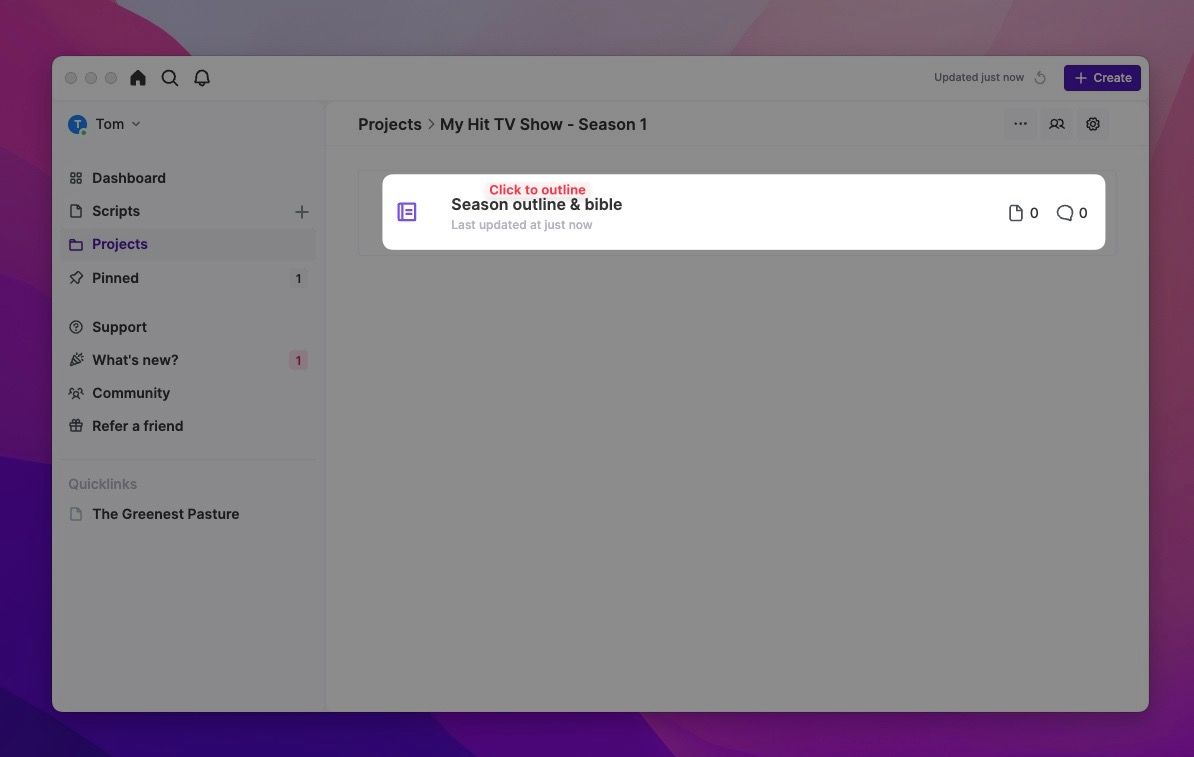
Step 2: Collect story elements
Section titled “Step 2: Collect story elements”Story elements are Storylines, Recurring Characters, and Locations. You can collect information on these elements, that will be available to all writers as they flesh out the episode outlines and write the scripts.
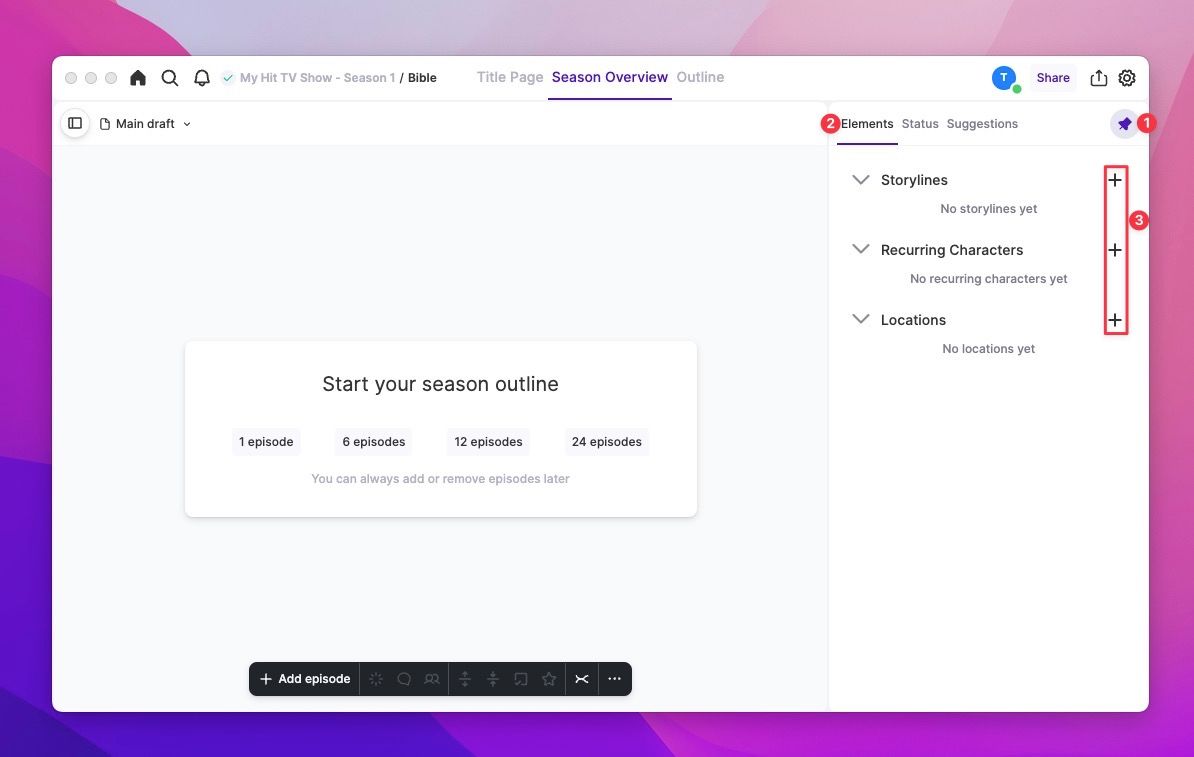
- Open the right sidebar
- Select Elements
- Add Storylines, Recurring Characters, and Locations
- Add a title, and some notes below, e.g. notes on the overall character arc, or thematic issues for storylines. You can also assign colors to characters and storylines, as well as INT/EXT for locations. Characters take a script name, which is how they should show up in the written script in dialogue elements.
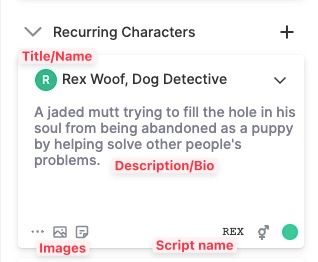
- You can also upload inspirational images: Just drag/drop them into the image window.
- Add a title, and some notes below, e.g. notes on the overall character arc, or thematic issues for storylines. You can also assign colors to characters and storylines, as well as INT/EXT for locations. Characters take a script name, which is how they should show up in the written script in dialogue elements.
Step 3: Start season outline
Section titled “Step 3: Start season outline”With a few core story elements in place, you can start your season outline.
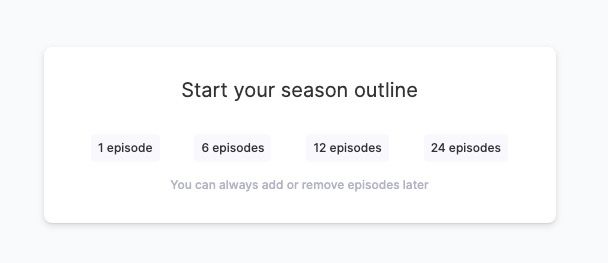
- Select the number of episodes closest to your target (you can add and remove later, of course).
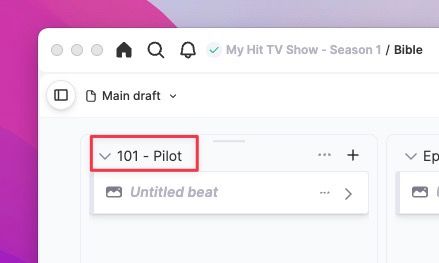
- Name your first Ep (or all of them – or save that for later):
- Add the first beat
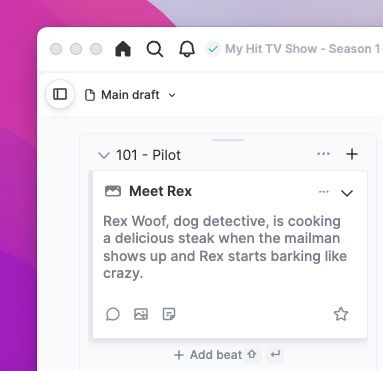
- Add a title, then hit return, which will take you to the synopsis.
- Add a short synopsis of what will happen in that beat,
- Hover open the
…more options menu on the Beat and select the # to open the tagging menu. You can use the up/down arrow keys to select elements andReturnto tag/untag them.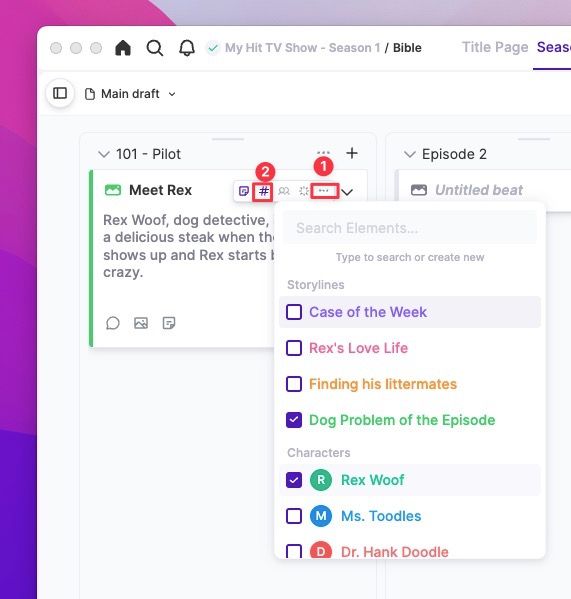
- Add more key beats. In the season view the idea is to craft the general shape of the season. Later you can flesh out each episode individually.
Step 4: Work on more episodes in the season
Section titled “Step 4: Work on more episodes in the season”Add key beats for the other episodes in your season, and feel free to add more episodes by clicking the large + to the right of the last episode.
Step 5: Create episode scripts
Section titled “Step 5: Create episode scripts”When you’ve figured out the main beats of an episode and want to break the story in more detail in its own outlining board, you can turn the episode into it’s own script with it’s own outline.
- Click the
…more options menu at the top of the episode column and selectCreate episode script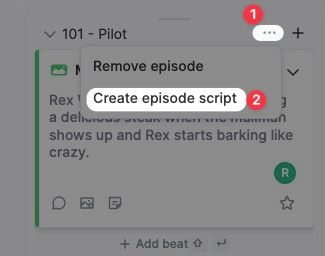
- Navigate to this episode by clicking the link icon next to the episode name:
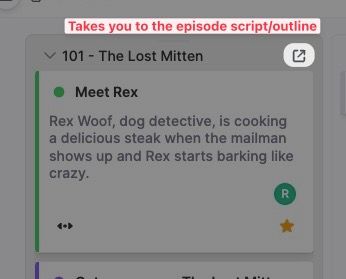
Step 5: Flesh out episode
Section titled “Step 5: Flesh out episode”Inside the episode script, you can flesh out the story of that episode in the Beats board. (Just click the Beats tab at the top.) You can add more acts, arrange the key beats from the Season Bible, and add more beats. You can tag the beats with the elements you created in the Season Bible, or add new elements for this specific episode.
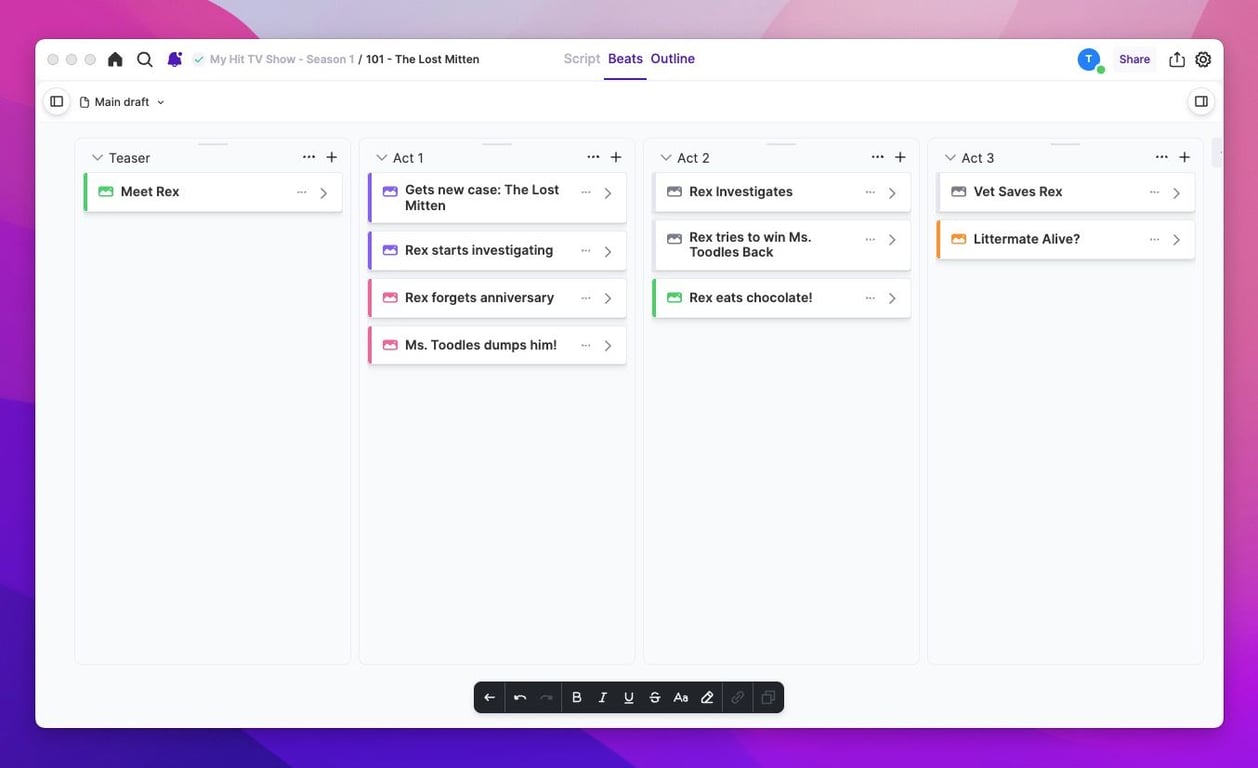
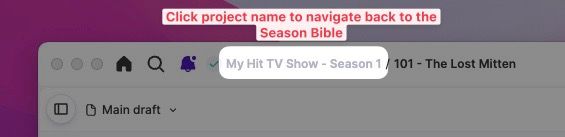
You can navigate back to the Season Bible by clicking the name of the Project in the top bar.
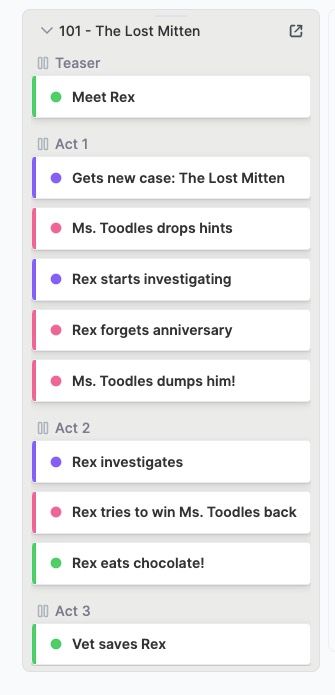
Back in the Season Bible, you will find that the beats you added in the episode Beats board have been added to the Season Bible as well, along with Act Names.
Step 6: Start writing episode 1
Section titled “Step 6: Start writing episode 1”You can select Script at the top to start writing this episode. Open the left sidebar and select Contents to find your outline information waiting for you as you write.
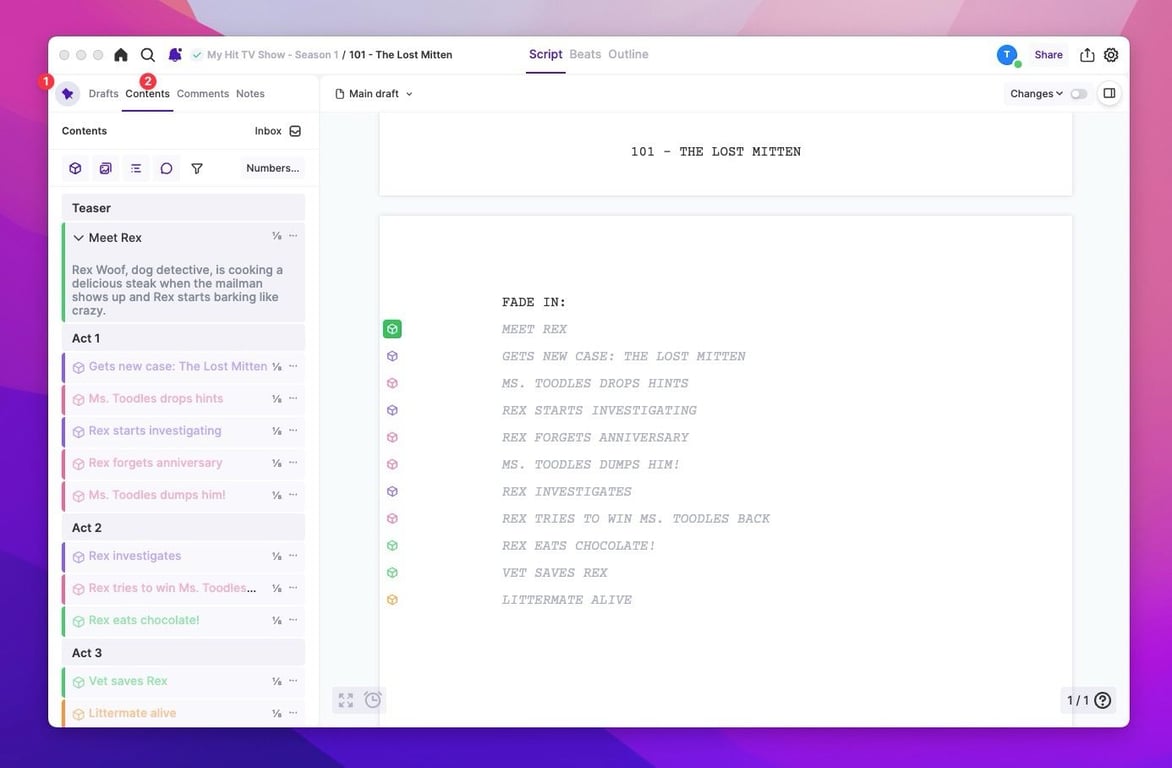
You will also notice that the autocompleter in your script uses locations and character from the beat board.