
How Do I View Script Changes By the Revision They Were Made In?
For your current draft:
Section titled “For your current draft:”Make sure you are looking at your current draft. (If not, click ‘Main Draft’ in the title section.)
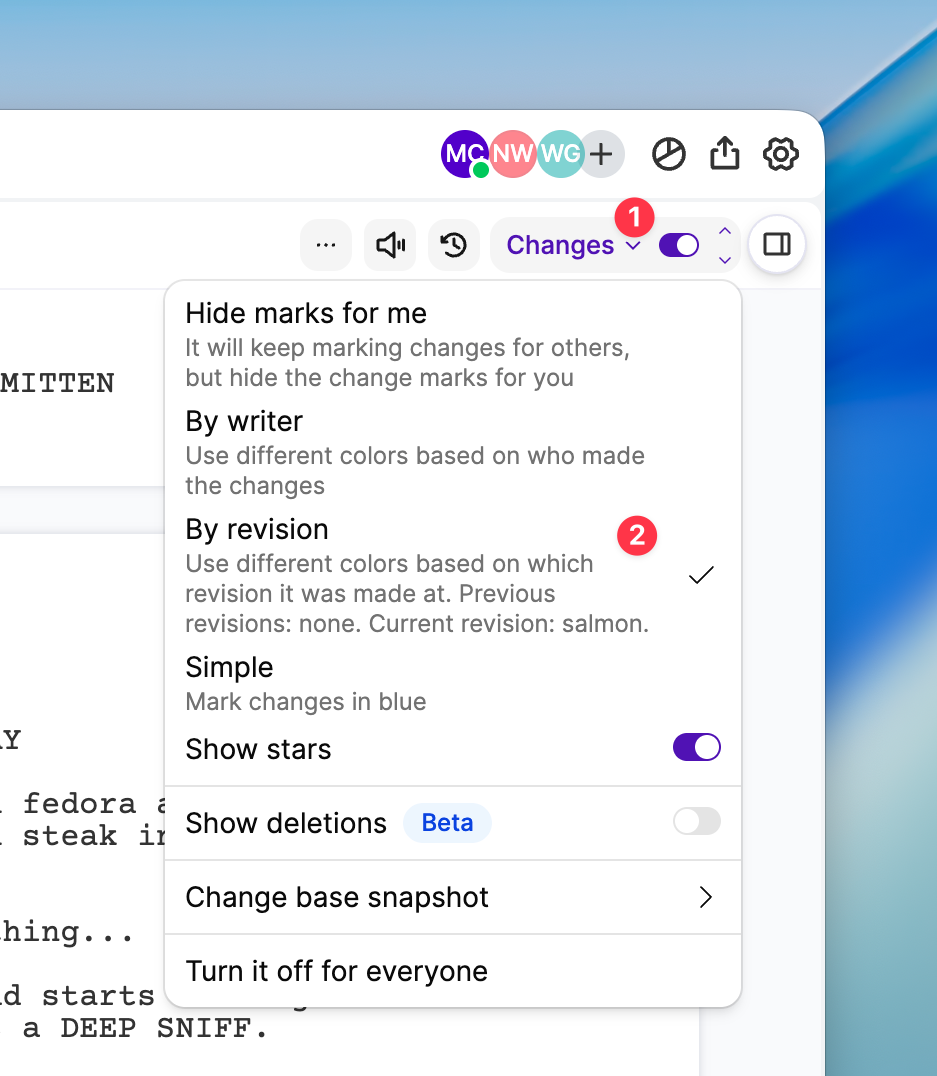
- Click on the dropdown arrow on ‘Changes’ menu in the tool bar.
- Select ‘By revision’ in the dropdown menu.
For a previous draft (snapshot):
Section titled “For a previous draft (snapshot):”- Click on the desired snapshot in the Drafts sidebar.
- Click on the ‘Changes’ menu in the toolbar.
- Select whether you want to see the changes ‘Made in this snapshot’ or ‘Made since this snapshot.’
- Select ‘By Revision Color’
- Click ‘Apply’