How Do I Invite Collaborators to Work on My Script?
How Do I Invite Collaborators to Work on My Script?
Section titled “How Do I Invite Collaborators to Work on My Script?”You can invite collaborators to work on your script:
- Click the
+icon in the Top Bar
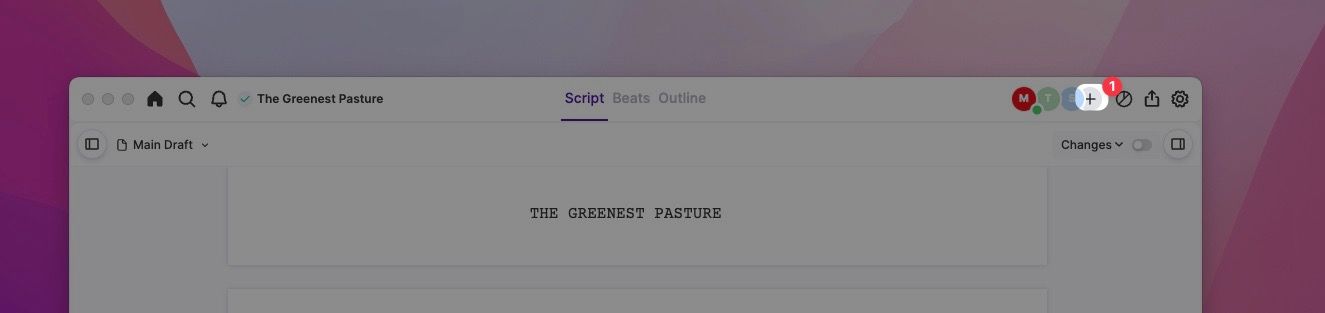
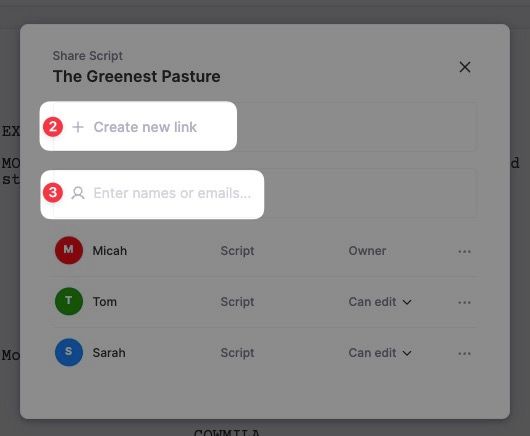
- From the pop-up window you can invite your collaborators either by creating a link to send to them, which you can revoke at any time.
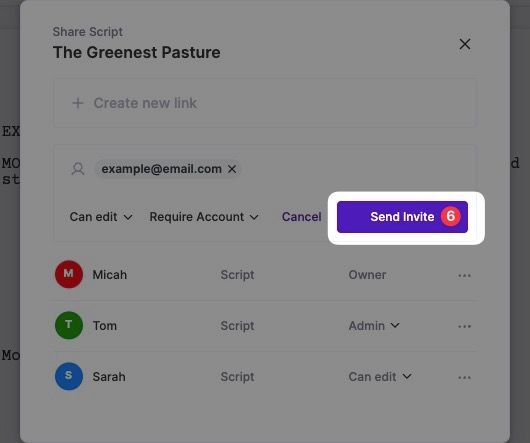
- Or by by entering their email address.
To invite them via a link
Section titled “To invite them via a link”- Hit
+ Create new linkand then give the link a name. - The default access level is Can edit, which means they can make changes to your script, but they cannot add or remove collaborators. You can change it to:
- Admin - they’ll be able to edit and add or remove collaborators
- Read only - they will be able to read your script, but not edit it or add or remove collaborators
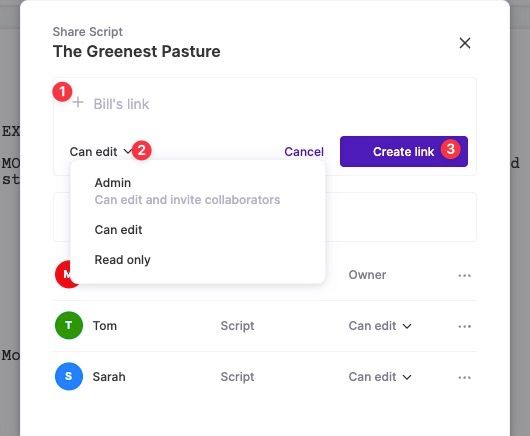
- Click
Create link - Click
Copy linkto copy it to your clipboard and share with your collaborator
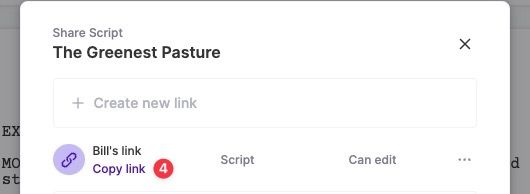
To invite a collaborator via email
Section titled “To invite a collaborator via email”- Enter their email address
- Click Invite [email address]
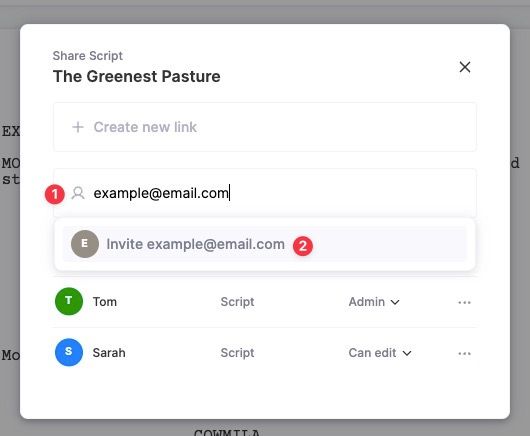
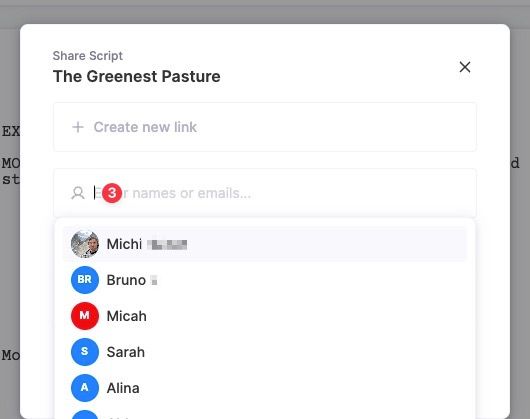
- If you’ve collaborated with them before, you can also click into the email field and then select them from the dropdown menu.
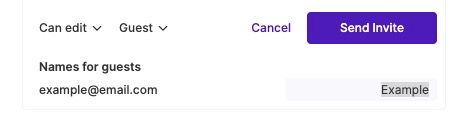
- Choose the invitee’s access level. (See above for more details)
- Choose whether you want to require them to have an Arc Studio account, or whether you want them to be able to access your script as a guest (without signing up for Arc Studio).
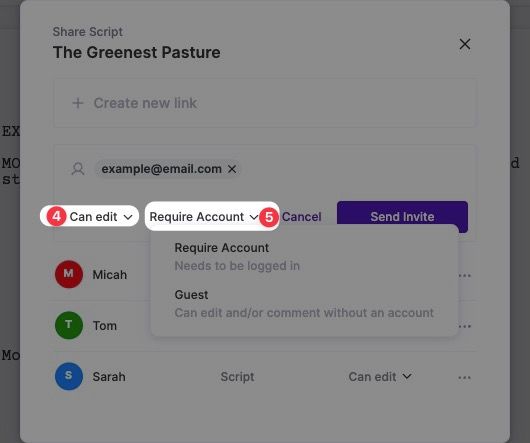
If you select Guest they won’t have to log in or create an account, so you can choose the name that will be associated with their edits and comments in the script.
- Slick
Send Invite