How Do I Take a Snapshot?
In Arc Studio the drafts of your scripts are called Snapshots. A snapshot permanently captures the state of your script at the time it is created. It’s a milestone in your project that you want to keep around for future reference.
You can take a Snapshot with the keyboard shortcut Shift + Command + S (Shift + Ctrl + S on PC)
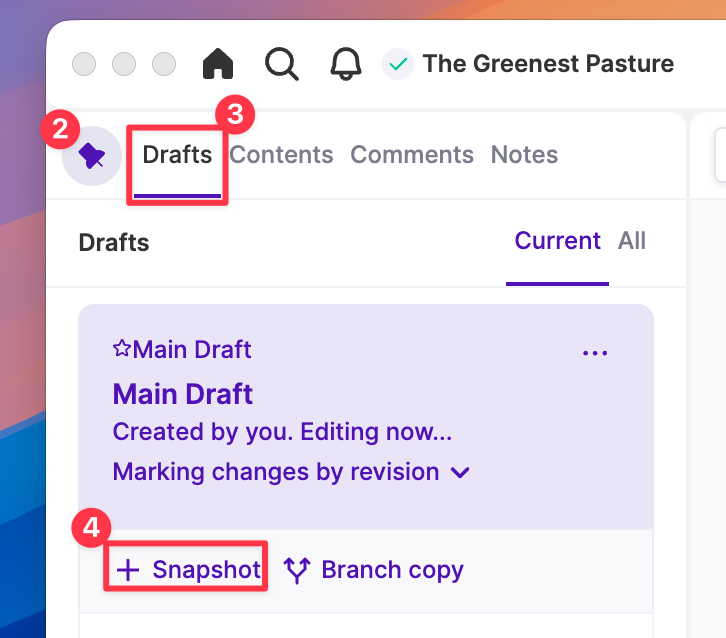
You can also take the Snapshot via the Drafts sidebar.
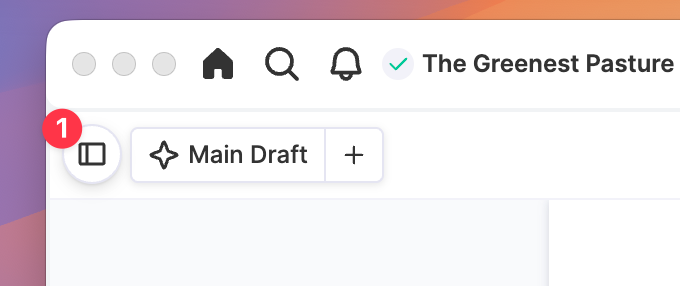
- Open the left sidebar
- Pin the sidebar if you want to keep it open
- Click on Drafts
- Click + Snapshot
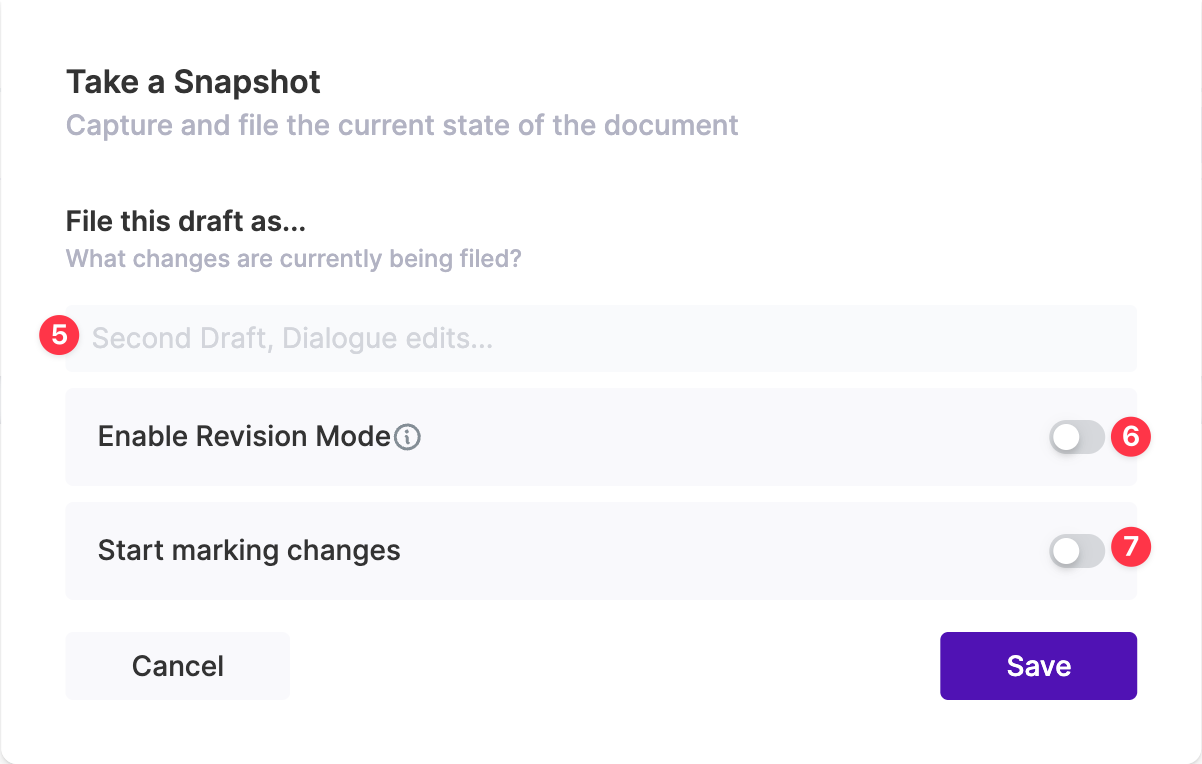
- Name the snapshot, such as “Writer’s Draft” or “Blue Production Draft”
- If you want it to be a colored Revision, click the toggle switch to Enable Revision Mode.
- If you want to Start marking changes in the next draft, toggle it on.
- Click Save