
How to Remove a Snapshot
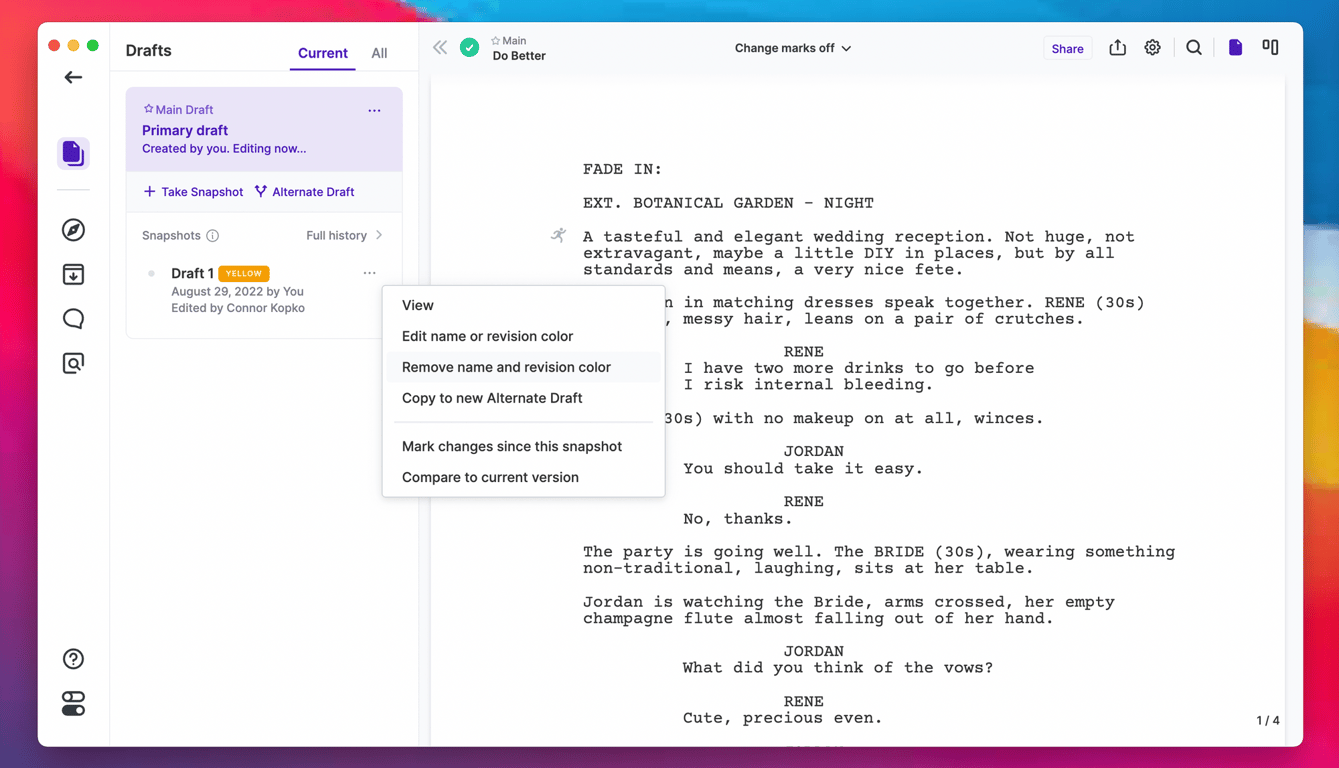
To remove a snapshot and turn it into an autosave (meaning it will no longer be in the snapshots bar), click the three dots next to the snapshot.
Choose “remove name and revision color,” and then select OK. It will then be moved to the history tab as an auto-save.
Glossary:
Snapshot: A point of reference in the history of your script. These snapshots have important metadata attached, such as when it was filed, who filed it, and who contributed changes.
Revision: A snapshot that has had a revision color added.
Auto-save: Whenever you stop writing for 10 minutes, we create a snapshot for you, called an auto-save. You can browse these auto-saves under full history and turn them into snapshots or revisions after the fact.
Branch Copy: A duplicate of the Main Draft along with all previous snapshots and revisions. The changes you make in the Branch Copy don’t automatically affect the Main Draft. You can choose which edits in the Branch Copy you want to apply to the Main Draft