
How Do I Access My Autosaves?
Autosaves are Snapshots that Arc Studio creates automatically every time you stop writing for 10 minutes.
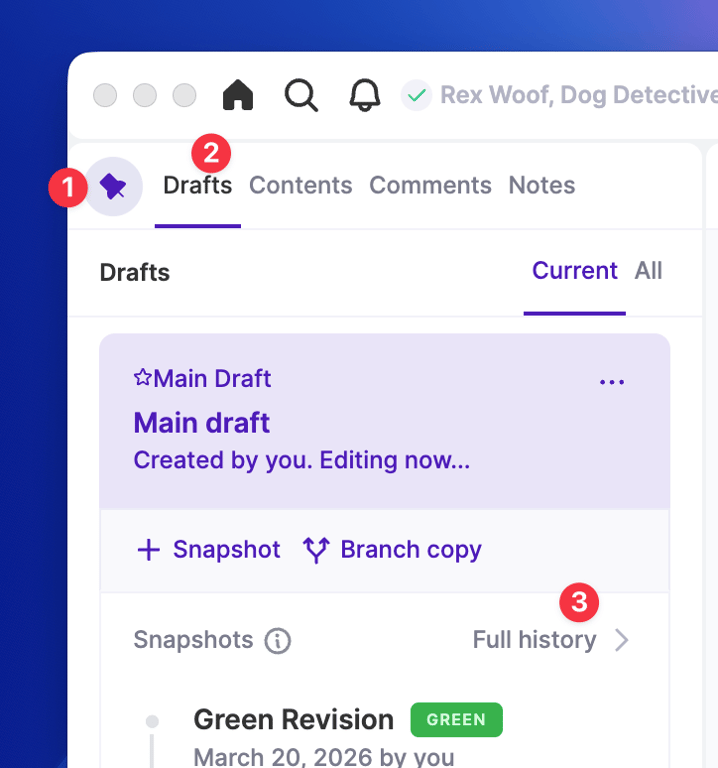
You can access all your Autosaves via Full History in the Drafts Sidebar on the left.
- Open the left sidebar.
- Select Drafts
- Click on Full history
Full history will show you a list of all your drafts, both the Snapshots you’ve taken and the Autosaves. The Autosaves are named based on the date and time they were created.
If there are multiple Autosaves in a row, they will be grouped together between Snapshots like this:
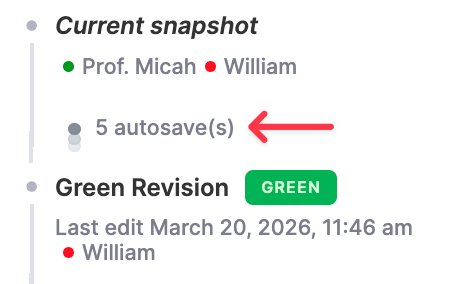
Click on the grouped autosaves to see them all:
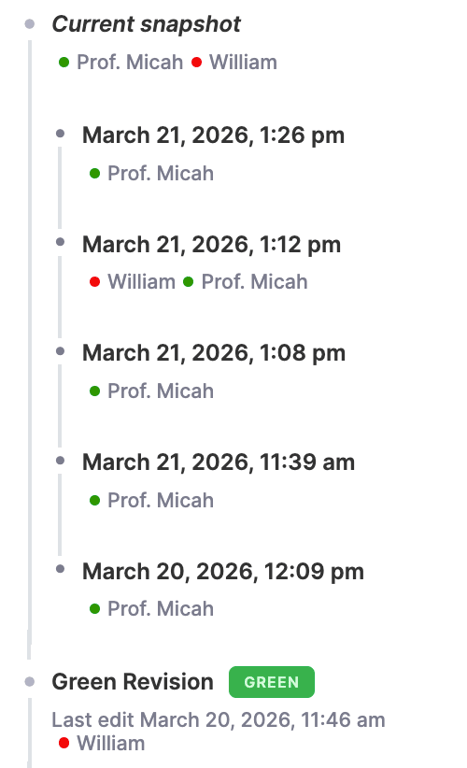
Click on an Autosave to view it.