
How Do I Create Note Categories?
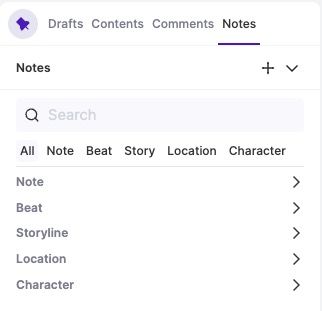
Notes in Arc Studio can be categorized in the notes list:
Default Note Categories
Section titled “Default Note Categories”Notes created for your script elements (Storyline, Character, Location), as well as notes created for your Beats will automatically be organized in those default categories in your notes list. Notes created via the + will be under the Note category.
Custom Note Categories
Section titled “Custom Note Categories”Creating Custom Note Categories
Section titled “Creating Custom Note Categories”You can also create custom notes categories in the settings menu.
- Click the settings gear icon.
- Select
All Settings
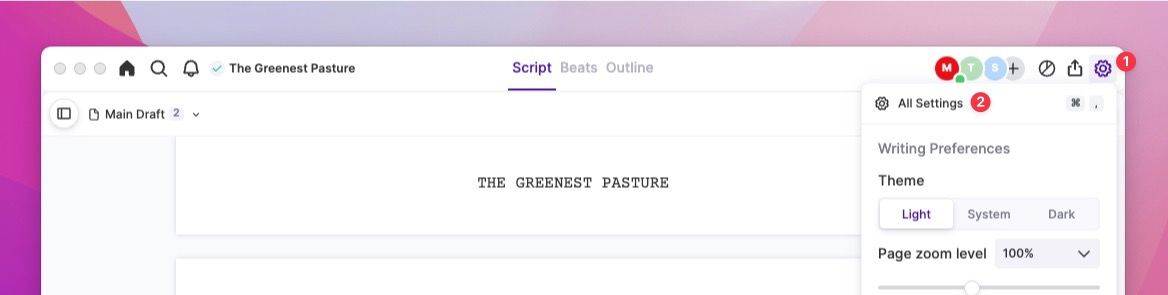
- Click on
Notes - Click on
+ Newnext to Categories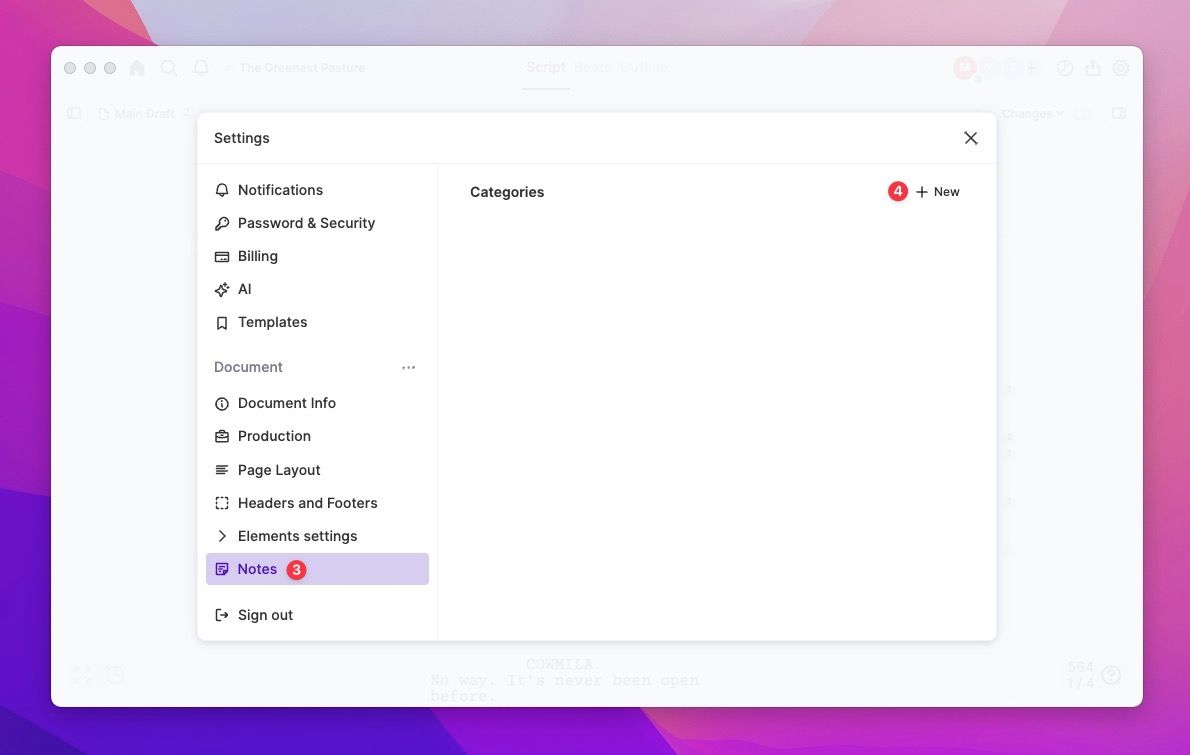
- Name the category. In this example I’ve named it “Revision Notes”
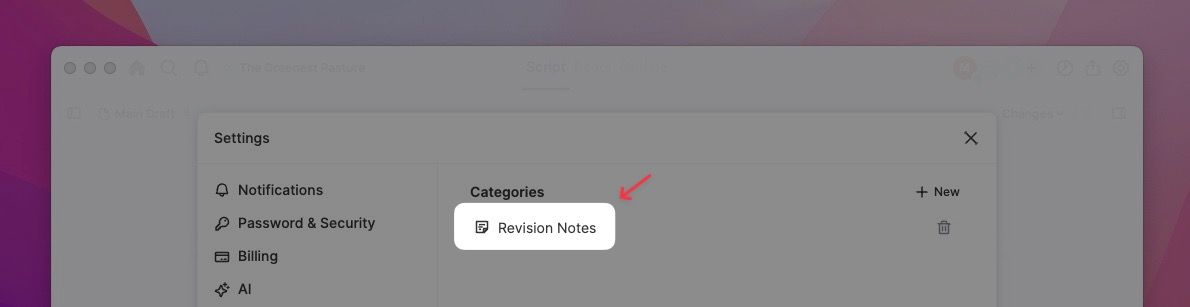
You will then find that category added in your notes list:
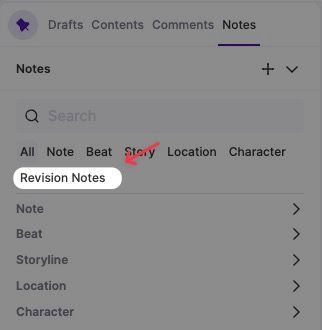
Once you add a note to that category, it will be added to the list below.
Adding Notes to Custom Categories
Section titled “Adding Notes to Custom Categories”To create a new note in a custom category:
- Click the
+on the Notes list - Select the option to create the note in the category you want.
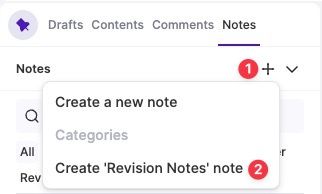
To add or remove an existing to from a category
- Open the note and click the … more options menu at the top.
- Hover over Category
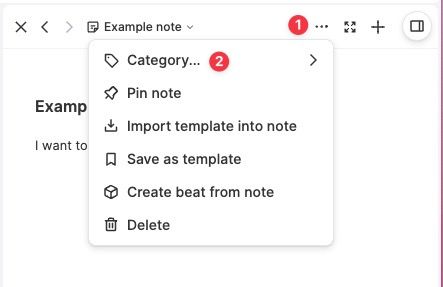
- To add the note to a category, select the category.
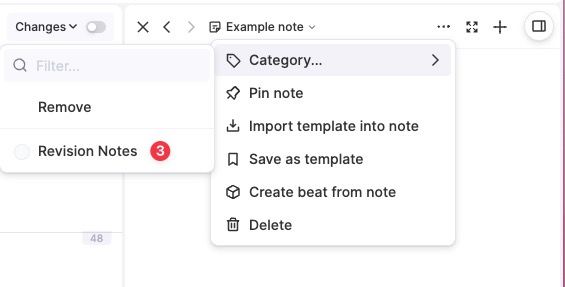
- To remove the note from the category select
Remove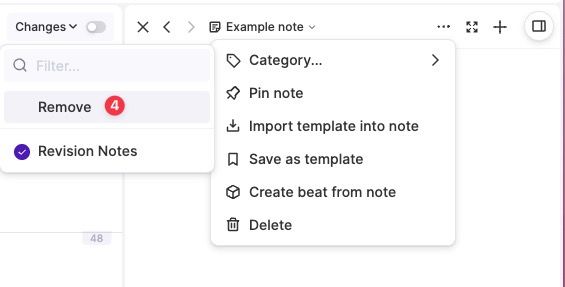
Filtering Note Categories
Section titled “Filtering Note Categories”To only see notes from a certain category, click that category at the top of the Notes list.